Facilities Forms
- Submit a MegaMation Work Order
- Furniture Move (Excel form will download)
- Mail Handling Request Form (Word doc will download)
- Surplus Tracking Form (Excel form will download)
How to Submit a Work Order
Step 1. Go to MegaMation at this link: https://dlweb.megamation.com/highline/. You may also log in using Highline MyApps and select the “Megamation Work Orders” tile.
Step 2: Log in with your Highline username and password through Okta.
Step 3. On the “Work Order Entry” page, use the drop-down to select whether your concern is in a building or outdoors.
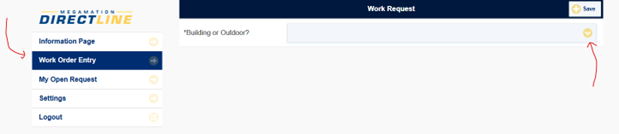
Step 4. Fill out all required fields. You can click the yellow arrow on the right side of the screen to see more details for each section.
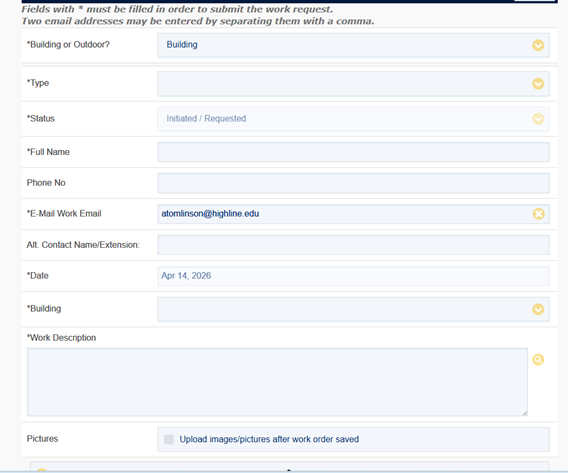
Step 5. When choosing a building, please ignore the building descriptions and select the building number instead.
Step 6. Select your room number from the list. If the issue is not in a specific room, or you aren’t sure of the number, select “I don’t know” and describe the location in the “Work Description” box.
Step 7. Describe the problem in the “Work Description” area with as much detail as possible.
Step 8. Add photos by clicking “Upload Images/Pictures.” Please include one close-up photo of the issue and one photo from further away to help our team find the exact location.
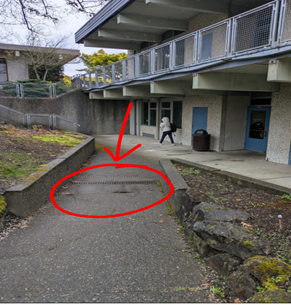
Send us a photo of the issue if possible.
Step 9. Click the Save button at the bottom of the page.
Step 10. If you checked the “Upload Files” box, a window will open after you save the work order, a window will pop up after you click save. Click “Choose File,” give the file a title, and click “Upload.”
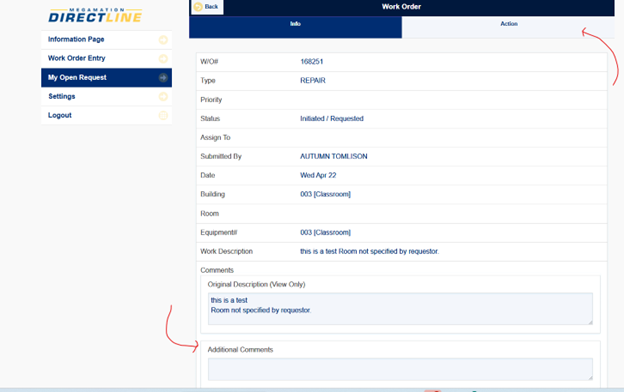
Step 11. To check the status of your request, go to the MegaMation home page and click the “My Open Request” tab. Click the yellow arrow to see more information about your ticket.
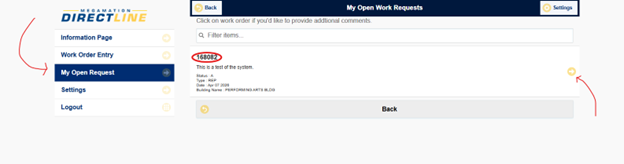
Step 12. You can add updates by typing in the “Additional Comments” section. To print or email the work order, click the “Action” tab at the top.